
Chat
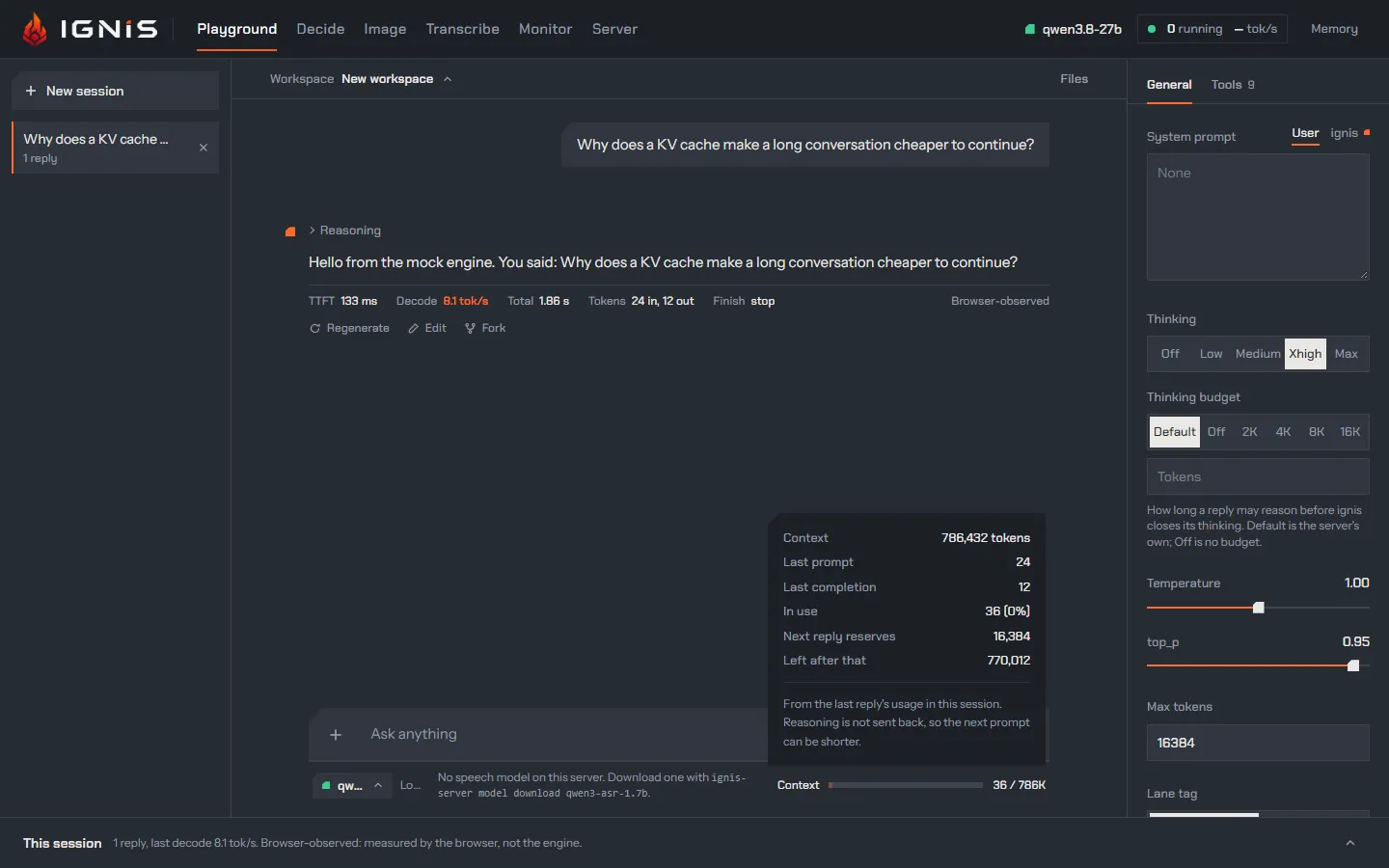
The Playground tab is a streaming chat with the loaded model. Sessions are on the left (Sessions), the settings on the right (Settings), the conversation in the middle under the bar that names its workspace, whose panel opens on the right, and under all of them the session’s log. Every reply shows what the model reasoned, what it called, what it answered, and the figures the browser measured while it streamed.
Sending a prompt
Section titled “Sending a prompt”Type in the box at the foot: Enter sends, Shift+Enter starts a new line. While the reply streams the button reads Stop, which ends the turn, agents included. The + button adds to the prompt:
- Image: pictures sent with the prompt as
image_urlparts. The server must run with image input on (vision); the built-inrtx5090profile turns it on. A pasted image lands here too. Each thumbnail can be marked: circles or strokes drawn on it, so the model sees what you point at. While the Workspace switch is on, sending also makes each picture a file of the chat’s workspace, as you picked it (or as you marked it), and names it in the prompt, so a later turn can read it again without your sending it twice. - File: a text, PDF or audio file for the chat’s workspace. It waits in the box until you send, its size beside it (a text’s characters, a PDF’s text’s, a recording’s bytes), and × takes it out; sending adds it to the workspace and names it in the prompt. The model reads a recording as its transcript (audio in the workspace). A file is text when its name or its type says so, or its name says nothing else, and it holds no NUL byte, as in the panel; any other file, an archive or a spreadsheet, is refused here, and the panel keeps it as bytes. It is offered while the Workspace switch is on (Tools and agents).
An image or a file alone is a prompt. Nothing is sent until you press Send.
When the browser refuses a file
Section titled “When the browser refuses a file”A refusal never costs you what you attached, and the page says it was not
saved in the workspace, with the browser’s reason (a full quota, a store
another tab holds). When the browser refuses to store the files a prompt
attaches, nothing is sent: the prompt, its files and its pictures are back in
the box, and the line under them says which files were not saved. When it
refuses only a picture, the prompt goes as without a workspace, the picture
inline, and the line says the model sees it in that prompt only. A picture
make_image makes stays in its reply the same way
(Pictures).
The chat’s workspace
Section titled “The chat’s workspace”A chat can have a workspace: files you and the model work on together, kept in this browser and never on the server. It is born with the chat’s first file, a file you attach, make in the panel or one the model writes, and takes the chat’s title as its name; a chat that makes no file has none, unless you pick an existing workspace for it (the picker). A first file the browser refuses to store leaves no workspace behind. The chat stays in that workspace until you move it (the picker), a fork shares it, and deleting the chat keeps it.
A prompt that attached files lists them under its text, by the names they
took in the workspace: a name the workspace already holds gets a number,
notes (2).txt, and a pasted image.png sent twice is image (2).png. A
picture keeps its bytes once in this browser, by their SHA-256, in the store
the Image view’s sessions use: the same picture in a
prompt, a workspace and an image session is one copy. The pictures the model
makes with make_image land in the workspace too, and its reply shows them
from there (Pictures). A file the model writes or edits shows in its reply as a card
with the version that call made; once a newer version exists, the card says
Superseded by version 2 and Open the latest shows that one, and once
the newest version deletes the file it says Deleted in version 3: the
panel restores it from its history.
The model’s side, its tools and the Workspace switch:
Tools and agents.
A chat saved before workspaces shows as it did, its files from create_file
and the pictures make_image made in it included. The files it had attached
wait in the prompt box until its next turn with the Workspace switch on,
which makes them the first files of its workspace and names them in its
prompt; while the switch is off the box hides them, they stay with the chat,
and the model is not told of them.
The workspace picker
Section titled “The workspace picker”The bar above the conversation names the chat’s workspace. Before the chat has one it reads New workspace, the default: a workspace born with the chat’s first file. Open it to pick one of the existing workspaces instead, the last changed first; the chat works in that one, with the files it holds. New session opens a new chat rather than reuse an empty one already given a workspace.
Once the chat has a workspace, the picker shows its name and offers Rename, Move to… and Delete workspace…. Move to… lists the other workspaces and New workspace: an existing one moves the chat there, and New workspace takes it out of its own, its next file then starting a new workspace named after the chat. Only the chat moves: no file is copied, moved or deleted, and the workspace it leaves keeps its files and its other chats. The model hears of the move in the next prompt’s turn notice, and what the chat and its agents read in the workspace it left does not count in the new one, so the model reads a file there before it changes it (Changes the model has not seen). A reply’s card keeps opening the version in the workspace that reply wrote it in. A fork works in the workspace its chat is in when you fork it.
While a reply of the chat runs, the picker waits, whether the chat has a workspace yet or not: no workspace is picked and the chat does not move. Its choices say why, and open again once the reply ends.
A delete asks first, naming how many files go. It removes the workspace, its
files and every version, and frees what nothing else uses: the bytes no other
workspace holds, and the pictures no chat, image session or other workspace
names. It cannot be undone. The chats that worked in it keep their messages,
and their next file starts a new workspace, named after the chat; until then
the picker reads New workspace, and offers the existing workspaces too,
to move the chat to one of them as Move to… does. A chat whose workspace
another tab deleted is the same, and the model’s list_files says the
workspace was deleted. Deleting a chat never deletes its workspace.
The workspace panel
Section titled “The workspace panel”Files at the right end of the bar opens the panel of the workspace’s files, with their count beside it. On a screen 1,536 pixels wide or more the panel is a column beside the conversation; on a narrower one it opens over the right side, and × closes it. This browser remembers whether it is open.
The files are a tree of their names: site/css/main.css sits in site, then
css, folders first and each level by name, with each file’s size. A click
opens a file, with its kind, size and latest version, and when and by whom it
last changed: you, this chat, one of its agents, or another chat working in
the same workspace, by its title. History beside it holds the file’s
versions (below).
- An HTML file opens in the same sandboxed preview as a reply’s card, with
its source, Save as PDF and the full-screen view; Edit beside it
opens its text in the editor. A site of several files shows whole: the
page’s
<link rel="stylesheet" href>,<script src>and<img src>that name files of the same workspace are put into the page, each name read from the HTML file’s own folder (css/main.cssbesidesite/index.htmlissite/css/main.css;../goes up a folder, and a leading/starts at the workspace’s top). Nothing else is looked up: a CSSurl(), afetch, a link, asrcset, an address on the web or a name that is not a file here stays as written, and the page stays in the sandbox, with no access to the Playground. - A Markdown file opens drawn as a reply is, an SVG file as the picture it draws (without running the scripts it may hold), and a CSV file as a table whose first row is the header, up to 500 rows. Edit beside the drawing is the file’s text. Expand, above the drawing, opens it full screen on a page of its own (Rendered, Table or Picture, or Source with numbered lines; Full width lets the page fill the window; Esc closes it), read-only: editing stays in Edit.
- Any other text file opens in the editor; Expand, above it, opens its newest saved version full screen with numbered lines. A text file’s full screen shows a new version as it is saved, and closes for good when the file is deleted or renamed: restoring it, or renaming it back, leaves it closed until Expand.
- A PDF shows the text the model reads of it.
- A picture shows at the panel’s width with its size in pixels; a click opens it full screen.
- An audio file plays in a player beside its transcript, or Transcribe while it has none yet (audio in the workspace).
- Any other file, an archive or a spreadsheet, shows its name and size: the
model sees it in
list_files, andread_fileanswers that it cannot read it.
A full screen, a page’s preview, a text file’s or a diff’s, holds the keyboard while it is open: the focus moves into it, Tab reaches nothing behind it, and Esc closes it and nothing else, a drawer or a dictation under way staying as they were. The focus then goes back to the button that opened it.
What you do here is yours: each version it makes is authored by you.
- New file makes an empty text file under the name you type,
/making folders; a name the workspace already holds gets a number,notes (2).md. - Upload, or files dropped anywhere on the panel, adds files of any kind: text as text, a PDF with its text, a picture into the store pictures share, anything else as its bytes. A picture this browser cannot decode (HEIC in most browsers) is kept as bytes of a kind the model cannot read.
- Record records from the microphone into a new audio file (recording).
- Export zip saves the workspace as a zip named after it: each file’s
latest version under its name,
/making folders in the zip too. Deleted files and the history are not in it. Import zip reads a zip, one made here or by any other tool, into a new workspace named after it without.zip: every file starts at version 1, yours, and its kind is recognised as on upload, a picture the browser already holds is not stored twice, and folder entries are skipped. A zip that cannot be read is said so in the panel and makes no workspace, and so is one that would unpack to more than the page takes in: 256 MB for one file, 512 MB for all of them, refused before anything is unpacked. The new workspace is one to pick in the Workspace menu of a chat that has none yet. - On each file’s row, the pencil renames it, the arrow downloads its latest version under the last part of its name, and the bin deletes it. A name another file holds, a deleted one included, is refused; a rename keeps the file’s versions. A delete is a new version that marks the file deleted, with the versions before it kept.
With no workspace yet, the first file you make or upload here creates it, named after the chat, or Workspace while the chat has no title. The panel works with the Workspace switch off too: the switch takes the model’s tools away, never your files. When the browser refuses to store a change, the panel says so in red, Not saved in this browser: and the reason; a refused delete of a workspace is said in the bar.
Editing by hand, history and restore
Section titled “Editing by hand, history and restore”A text file opens in the editor, its text in a box. Typing changes the box alone; Save, or Ctrl+S in the box (Cmd+S on a Mac), makes a new version of the file, authored by you: one version per save. Discard changes takes the newest version back. While you have typed nothing the box follows the file, so a version the model writes meanwhile shows at once; once you have typed, a newer version leaves your text alone and the editor names it, and saving makes your text the newest version, the other kept in the history. A file with CRLF line endings keeps them. What you type waits in the box while you look at the file’s other tabs; opening another file, ← All files, closing the panel, or a deletion of the file meanwhile, drops it.
The model reads your change before it changes the file again: its next
write_file, edit_file or delete_file of that file is refused until it
reads the file
(changes the model has not seen).
History lists every version of the file, the newest first, with its time, who made it and its size, or that it deleted the file. A rename changes no content and makes no version: the history holds the file’s versions under its new name.
- Compare two versions, for a text file with two versions or more, picks
any two of them (the two newest at first) and shows the lines the second
removes, in red with
-, and adds, in green with+, numbered in each version. Unchanged lines further than three lines from a change fold into a row that counts them. Two versions that differ by more than 1,000 lines removed and added show the lines between the start and the end they share removed whole, then added. Expand, beside the count, opens the diff full screen: the two versions side by side (or Unified), the same two version pickers, Show all lines to unfold the unchanged ones, and Previous change / Next change (thepandnkeys) to step through the changes. Esc closes it. - Restore, on any version but the newest, makes a new version with that version’s content, authored by you; the versions in between stay. A restore is undone by another one.
A deleted file leaves the tree. Show deleted files, beside Upload with their count, puts them back in it, struck through: a click opens one on its history, where Restore brings back a version from before its deletion. A deleted file keeps its name meanwhile, so no other file takes it.
Audio in the workspace
Section titled “Audio in the workspace”An audio file, attached with File, uploaded, dropped or recorded, keeps
its bytes in this browser, and the model reads it as its transcript: plain
text, without speakers. The server’s
transcription route makes it the first time a
version is read, by the model’s read_file or by Transcribe in the panel,
and the transcript is kept with that version: every later read gives the same
text at once and asks the server nothing. The speech model runs beside the
model loaded, so a transcript is made whichever model serves the chat, and
during a model switch too.
A transcription needs the server’s speech model. While the models listing says
it cannot serve, read_file answers the model with the reason, the same
sentence the struck mic shows (when the mic is struck through),
and Transcribe is struck with it. A transcription the server refuses is
answered with the server’s words, and nothing is kept, so the next read asks
again:
- a clip longer than
speech.max_clip_seconds(1200 seconds, 20 minutes, by default; speech) is refused whole, never split; - Opus is not decoded yet: an
.opusfile, or WebM or Ogg holding Opus, as many voice notes and a browser’s own recordings are, is refused, naming the formats the server takes (WAV, FLAC, MP3, AAC or M4A, and FLAC in Ogg or WebM).
Stop ends a turn that waits on a transcription, and the transcription with it unless the panel’s Transcribe waits on it too; a stopped one keeps nothing.
Recording into the workspace
Section titled “Recording into the workspace”Record in the panel records from the microphone into a new audio file of
the chat’s workspace, born with it if the chat has none, named after the
moment it started: recording 2026-10-28 14.05.09.wav. While it records, the
panel shows the time, the level and the limit; Stop and save saves it as
yours, Cancel keeps nothing. The file is a WAV, 16 kHz mono, the format the
server transcribes; a minute takes about 1.8 MB of the browser’s storage.
A recording stops and saves itself at the longest clip the server transcribes,
speech.max_clip_seconds, read from the server’s configuration when it
starts. It goes to the chat on screen when you pressed Record, whichever
chat is on screen when it ends, and closing the panel saves it rather than
lose it.
Record takes the microphone under the same rules as dictation: struck through, the reason under it, while the page is not on https or localhost, while no speech model can serve, and while the Transcribe view listens. A microphone the browser blocked leaves it pressable, which asks again (when the mic is struck through). The recording stays in this browser; nothing reaches the server until it is transcribed.
Dictating a prompt
Section titled “Dictating a prompt”The mic beside Send dictates into the box, with the speech model on the server. Click it, or press Ctrl+Shift+Space with the focus in the box: held for longer than 400 ms it is push-to-talk, and letting go ends the dictation; tapped, it starts one, and the next tap ends it. A silence ends it too, as described below.
While you speak:
- the mic becomes Done, and Send waits: a dictation is never sent by itself;
- a strip above the box shows a level meter, the words as they settle (light), the last few words the model may still change (grey), and a timer; Listening… before the first word;
- the box’s underline runs.
Done ends it, and so does a silence: after 3 seconds without speech the dictation stops by itself, exactly as if you had pressed Done. A shorter pause cuts nothing. Push-to-talk never stops by itself: a held Ctrl+Shift+Space ends when you let go. The silence is a setting in General: Off, 2 s, 3 s or 5 s, kept by this browser; with Off, only Done, a second tap or letting go ends a dictation.
The strip reads Finishing while the server decodes the last words; then the text lands at the cursor, selected, with a space added where it would touch a word. Edit it as you like, and press Send when it is ready. Esc, or Discard on the strip, throws the dictation away and leaves the box as it was.
The line under the box follows along:
| When | It says |
|---|---|
| idle | Enter sends, Shift+Enter adds a line. Dictate with the mic, or hold Ctrl+Shift+Space while you speak. |
| listening | Listening. Done puts the text at the cursor; Esc discards it. |
| finishing | Finishing the last words. |
| for 6 s after | Inserted N words at the cursor. Nothing is sent until you press Send. |
| for 4 s after Esc | Dictation discarded. |
| every session taken | Speech is busy with another dictation. Trying again in N s. |
| refused again | The dictation still could not open: speech is busy. Press the mic to try again. |
| the server is up but the socket never opened | Dictation could not start: the server is up, but this address does not carry WebSockets. |
| the connection closed | Dictation stopped: the connection to the server closed. Insert what was heard, or discard it. |
| the server failed it | Dictation stopped: the server’s reason. Insert what was heard, or discard it. |
| Done with no audio, or nothing said | Nothing was heard. |
| the server unreachable, the mic broken | Dictation could not start: why. |
Busy. The server holds speech.max_sessions (4) dictations at once
(speech). One more is refused; the page counts
down the server’s Retry-After (3 seconds when there is none, 15 at most) and
tries once more. A browser cannot read why a socket was refused, nor its
Retry-After, so the page asks the same route with a plain GET, which the
server answers as it would the upgrade and which it can read: 503 engine_full
is busy, with the Retry-After the countdown starts from, 503 speech_unavailable is the unavailable reason, and a server that
would have opened the socket says so, which means something between the page
and the server (a proxy that does not carry WebSockets) lost the upgrade.
A stopped dictation. If the connection closes, or the server fails the dictation, the strip keeps what was heard (the settled words and the last grey ones): Insert what was heard puts them at the cursor, Discard drops them.
One at a time. The page dictates into one field at once. Pressing another mic, in the Image studio or Decide, ends the dictation under way, and its text still lands in its own field. While the Transcribe view listens, every mic is struck and says Listening in Transcribe.; a listening that starts ends the dictation under way the same way.
What a dictation sends
Section titled “What a dictation sends”Each dictation is one session on the server’s Realtime transcription route,
GET /v1/realtime?intent=transcription, opened at the press and closed when
the text lands. Pressing the mic is also what loads the speech model, if it is
not loaded. The session asks for:
- the server’s turn detection:
turn_detectionis{type: "server_vad", silence_duration_ms: <the setting>}, the server’s own defaults for the rest, and the server’s first commit ends the dictation as Done does. With the setting Off, and for a held Ctrl+Shift+Space, it is manual commit (turn_detection: null) and Done commits; - 16-bit PCM at 16 kHz, the model’s own rate: the browser downsamples the mic and sends 100 ms of audio at a time;
- the provisional tail (
session.ignis.provisional_tail: true): the grey words; - a context, as the transcription’s
prompt: the last reply, then what is already in the box, so names and terms are spelled the way the conversation spells them. The server reads its lastspeech.context_max_tokens(512) tokens.
No language is sent: the model detects it. The audio is never written to disk or to a log.
When the mic is struck through
Section titled “When the mic is struck through”A struck-through mic cannot start, and the line under the box says why:
| It says | Why | What to do |
|---|---|---|
| The microphone needs https or localhost. … | The browser gives a page a microphone only over https or on localhost. | Open the Playground through an https proxy, or start the server with --server-expose cloudflare-quick (access). |
No speech model on this server. Download one with ignis-server model download <id>. |
The speech model’s files are not on disk. | Run that command (fetching a model). |
Speech is turned off on this server (speech.model = off). |
The server was started with the speech model off. | Set --speech-model auto (speech). |
| Microphone access is blocked for this site. … | You, or the browser, refused the microphone. | Allow it in the browser’s site settings, then press the mic again: this one stays pressable. |
| Speech is unavailable on this machine: the CPU lacks AVX2 … | The speech model runs on a CPU with AVX2. | — |
The server’s reasons come from GET /v1/models’ speech object, read when
the page opens and with each message; a reason the table has no row for is
shown in the server’s own words.
What a request carries
Section titled “What a request carries”On a real server the chat talks over one WebSocket to /v1/responses
(the Responses API): every session and every agent
shares it, and a turn sends only the items that are new since the last one.
Choose HTTP under Settings, or let the page fall back to it when the socket
does not open, and each turn is a POST /v1/chat/completions; then the browser
carries at most five streams at once, agents included. When the page falls
back, a bar under the header says so once.
A request never names a model: the chat follows the model the server has
loaded, so it cannot start a switch by accident (the
two names pitfall). It carries
the settings (reasoning_effort, thinking_budget, temperature, top_p,
max_tokens or max_output_tokens, and class, the lane tag), the tools
that are on, and the system prompt, which stays the same from turn to turn.
What the page tells the model about a turn, the titles of the memory notes
and the moment, goes ahead of the prompt as its
turn notice.
A reply
Section titled “A reply”From top to bottom:
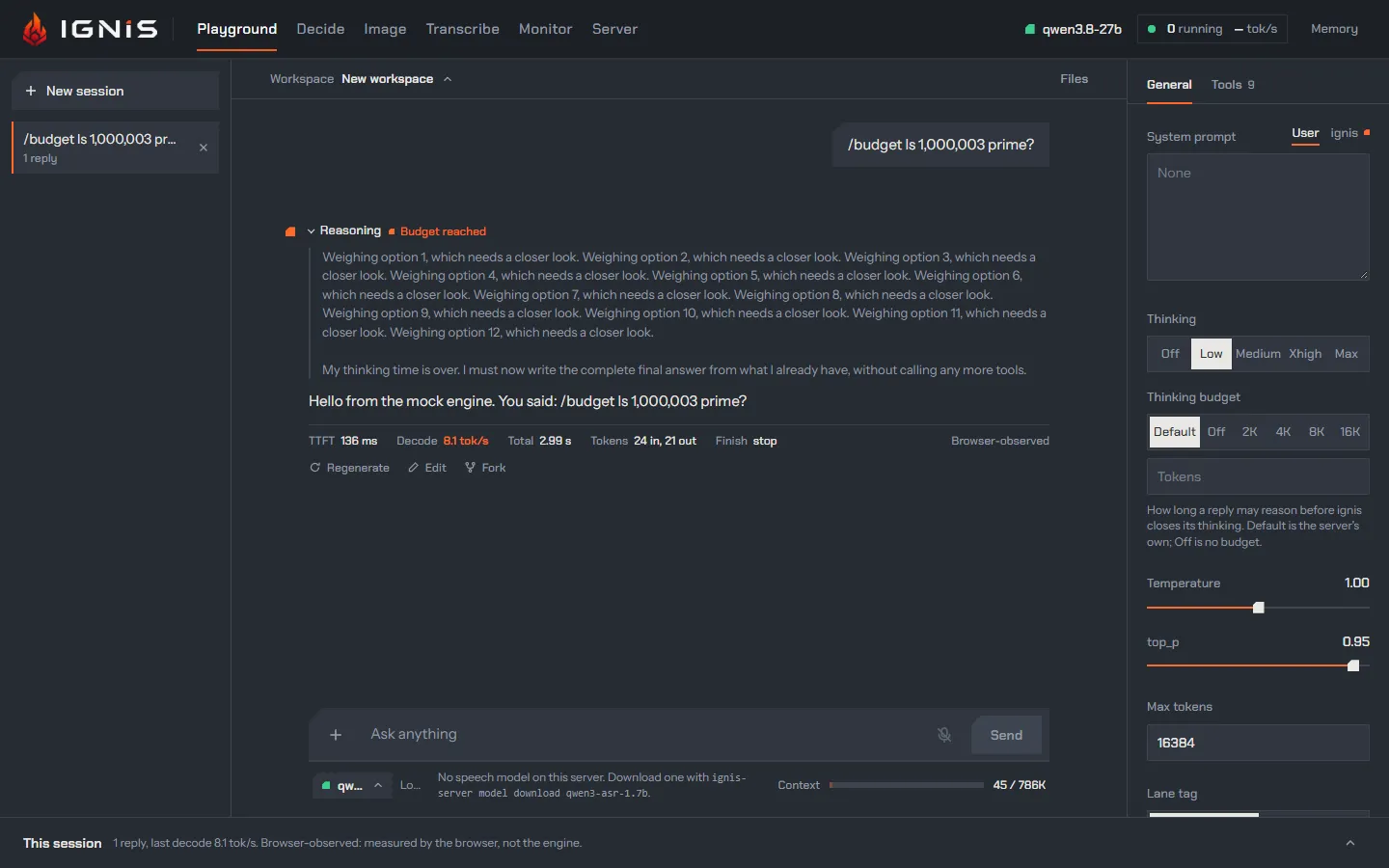
- Reasoning, folded under its summary once the reply ends (it reads Thinking… and stays open while it streams). An orange Budget reached mark says the thinking budget closed it. Reasoning the loop guard took back is shown struck through, where the loop was.
- Queued, over the WebSocket only, when every lane was busy and the server held the request in its queue instead of refusing it.
- The answer, as Markdown: headings, lists, tables, code blocks with a
Copy button, formulas (KaTeX:
$…$,$$…$$,\(…\),\[…\]), and a Preview of anhtmlblock. Markdown in replies off shows the raw text. - Tool sections: Agents, Web, Tool calls, Pictures, Questions (Tools and agents).
- An error line for a request the server refused, with its status and
message, such as
503: … engine fullover HTTP. - The figures line.
- Regenerate, Edit and Fork: regenerate drops this reply and what follows and asks again; edit changes the text in place; fork starts a new session from here. A prompt has Edit too, with Save and resend.
The figures line
Section titled “The figures line”| Figure | What it measures |
|---|---|
| Queued | How long the request waited for a lane (only when it did). |
| TTFT | Send to the first token of any kind: reasoning, answer or tool call, less the queue. |
| Decode | Tokens per second from the first token to the last: (completion tokens − 1) / (last − first). |
| Total | Send to the end of the stream. |
| Tokens | Prompt and completion tokens, from the stream’s final usage. |
| Rewound | Tokens the loop guard took back (rewound_tokens in usage), when it did. |
| Finish | The finish_reason, or stopped. |
They are browser-observed: measured around the stream, over the network, not inside the engine. A decode rate here includes the network and the page; the server’s own figures are in the Monitor and its metrics.
The model picker
Section titled “The model picker”Under the box, the picker names the model the next message goes to, and a chip beside it says what sending will do first: Loaded, Loads when you send (after an idle unload), or Switches from … when you send. The menu lists the text models the server knows, with their size and whether a message can go to them; one that is not on disk points at the Server view, where it is downloaded.
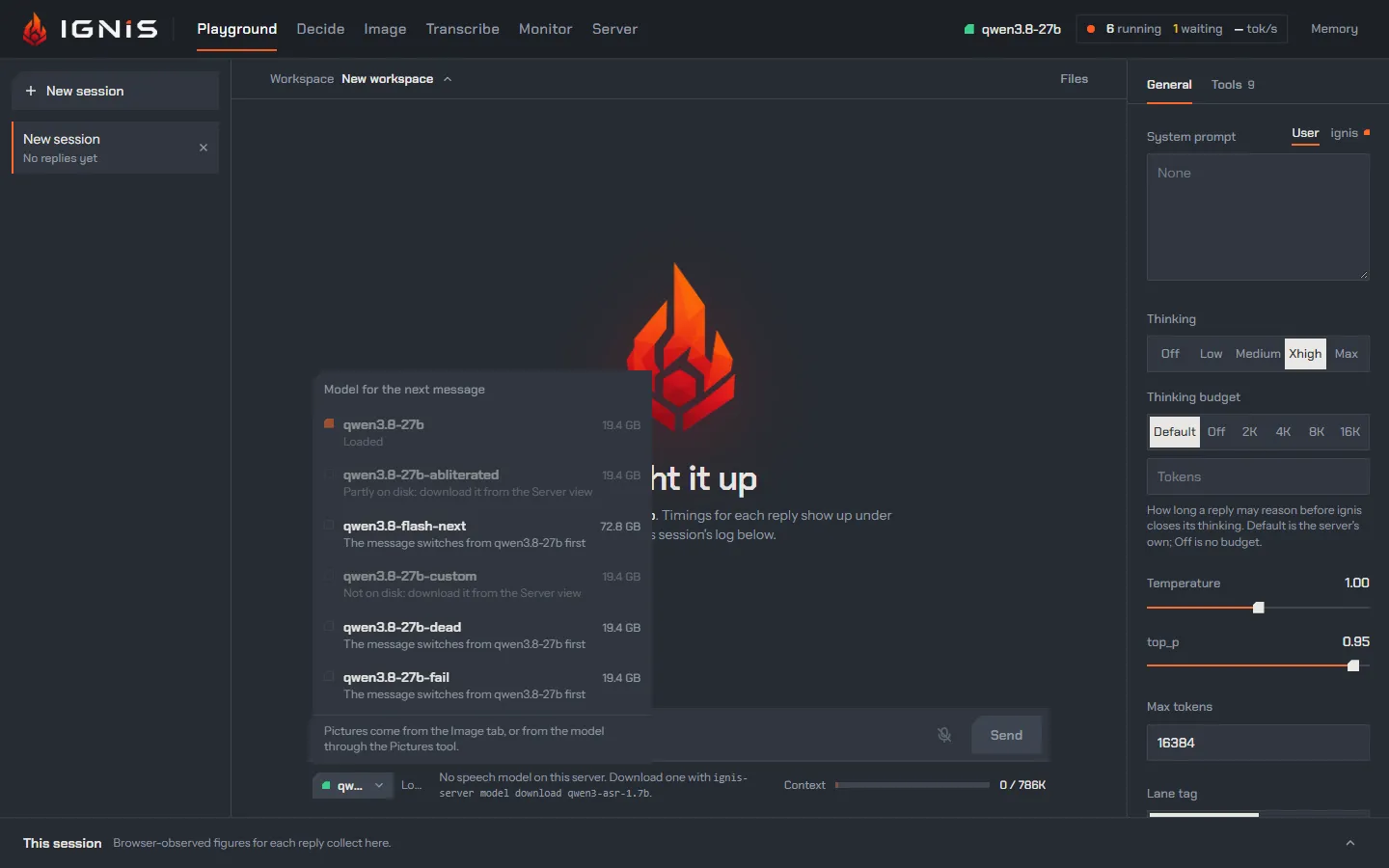
Choosing another model makes the next message switch the server
(POST /v1/models/switch), wait for the load and then send; the prompt says
Switching to … from … while it does. The choice holds for that message only:
the chat then follows the server again. With the image model loaded, the next
message goes back to a text model on its own. How switching works and what it
costs: Models that come and go.
The context meter
Section titled “The context meter”Context shows how much of the model’s context the session uses: the solid
part is the last reply’s prompt plus completion, the pale part the room the
next reply reserves (its Max tokens). Hover it for the numbers: the context,
the last prompt, the last completion, what is in use, what the next reply
reserves and what is left after that. The limit is the loaded model’s
max_model_len from GET /v1/models. Reasoning is not sent back on the next
turn, so the next prompt can be shorter than the meter suggests. Over the
limit the bar turns red: the server would refuse the request, so lower Max
tokens or start a new session.
The session log
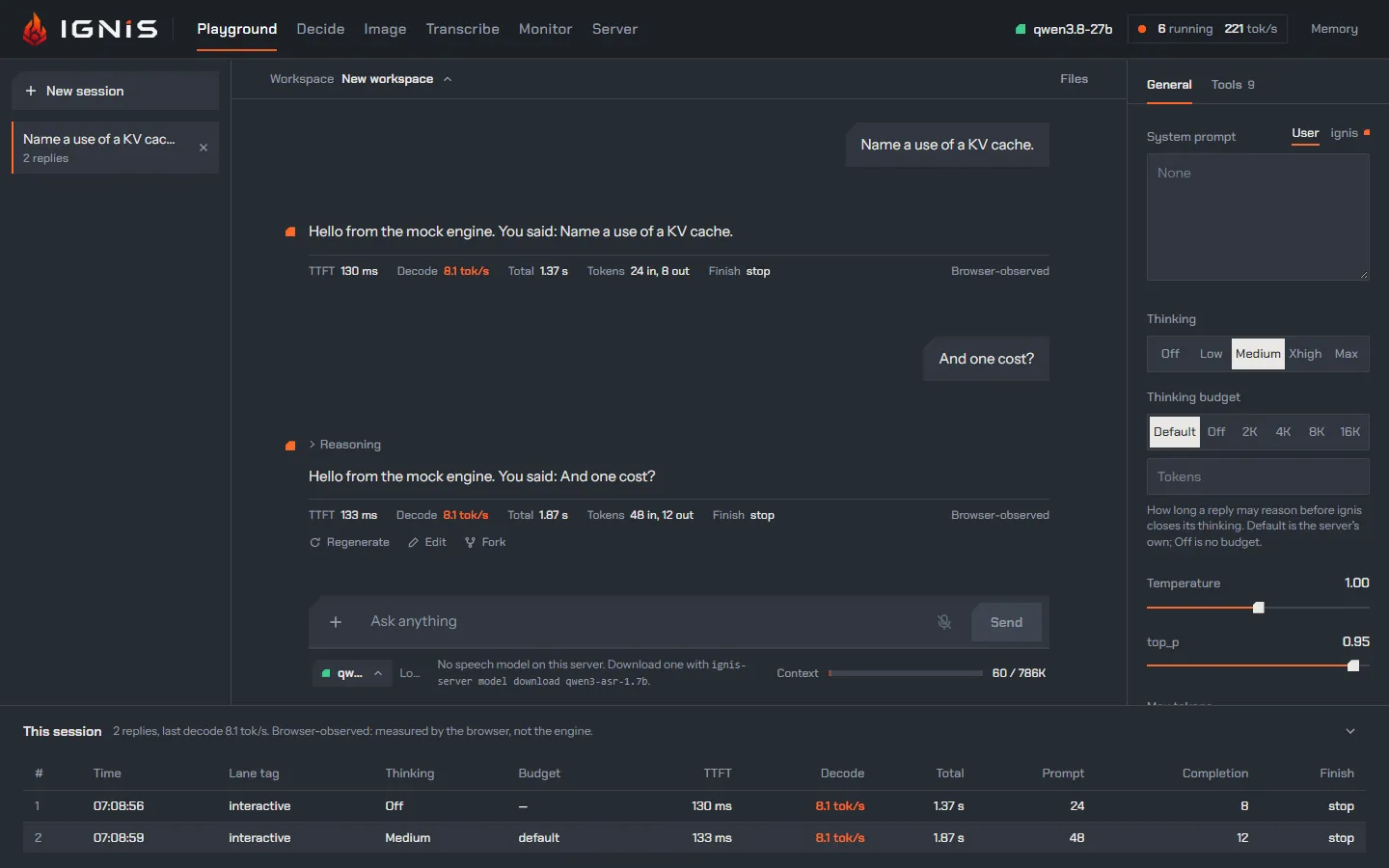
Section titled “The session log”This session, at the foot, collects a row per request: the time, the lane
tag (agents show as agent <name>), the thinking effort and budget (with
reached when the budget closed the reasoning), TTFT, decode rate, total,
prompt and completion tokens, and the finish reason. A failed request shows its
error across the row. It is the quickest way to compare two settings on the
same prompt.
When the model is not serving
Section titled “When the model is not serving”The empty chat says what the server is doing: Light it up when a model
serves, Warming up while one loads, Switching models during a switch,
and that a model unloaded while idle loads again with the next message. While
no model can take a message the prompt box reads Waiting for the model… and
Send is off.
Read more
Section titled “Read more”- Settings: thinking, the budget, sampling, the lane tag, the transport.
- Reasoning that finishes: the loop guard and the budget behind the marks above.
- Chat completions and Responses: the same requests from your own code.
- Speech to text and the speech settings: the model behind the mic.