
Image studio
The Image view is a studio for Qwen-Image-2.1-Turbo, the image model ignis serves on OpenAI’s image routes (images). It is laid out like the chat: image sessions on the left, the next step’s picture settings on the right, and between them the session’s steps, each with its prompt, the inputs it was sent with and the pictures it made, over a prompt box.
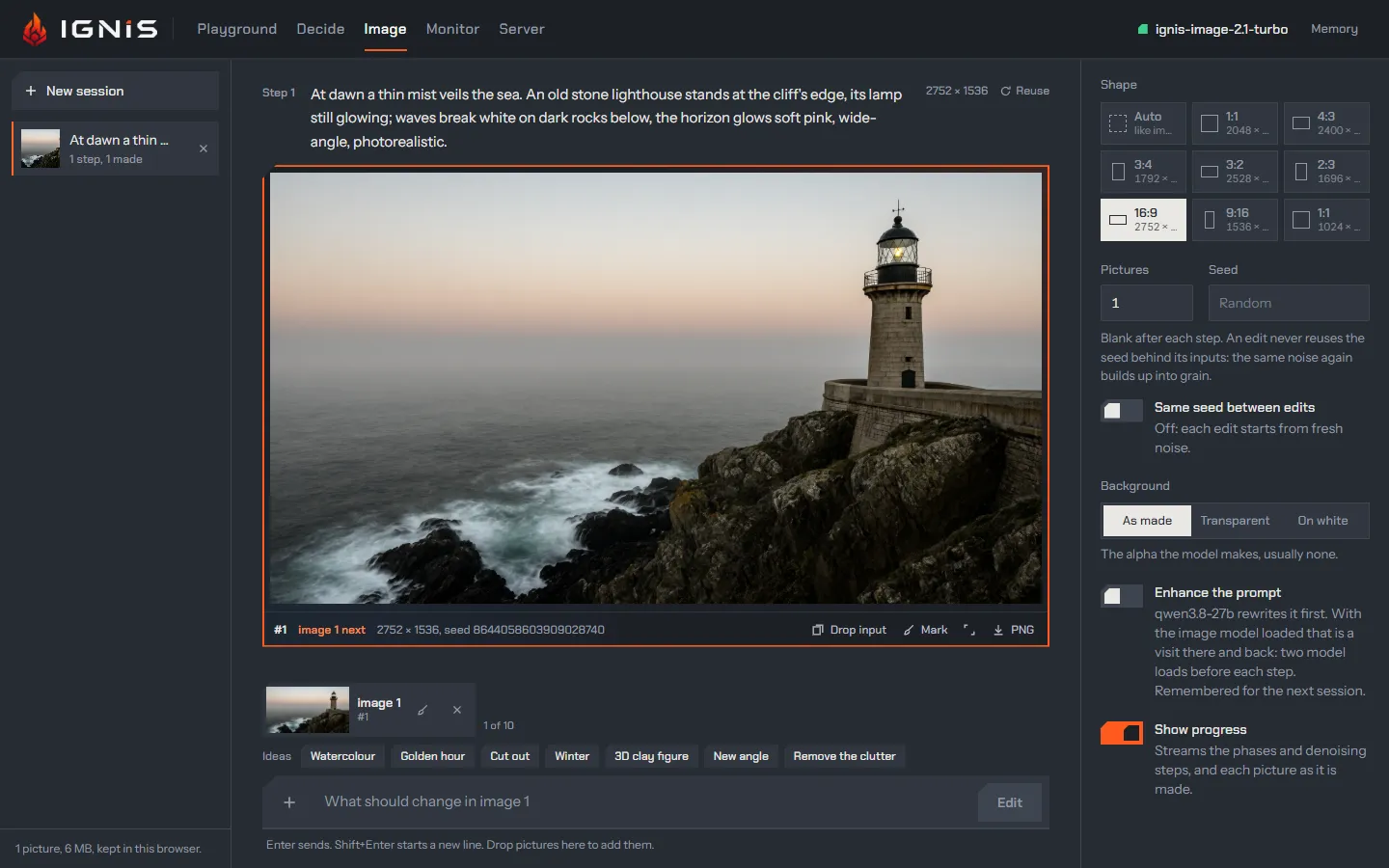
A session is a chain of steps
Section titled “A session is a chain of steps”A session keeps every picture uploaded into it, made by it or marked in it,
each named #N (its pool). Each step sends a prompt and up to ten input
pictures, which the Image view labels “Inputs”:
- no input makes a new picture (
POST /v1/images/generations); - one or more inputs edits them (
POST /v1/images/edits): “What should change in image 1”, or “Put the jacket from image 2 on the person in image 1”.
After a step, its last picture becomes the next step’s input, so a picture is edited step after step. Reuse puts a step’s prompt, inputs, settings and seed back in the box. The + button adds pictures from the pool or from disk, and pictures dropped on the prompt box are added too. An empty session offers fourteen example prompts (a lighthouse at dawn, a café’s chalkboard sign, an infographic, a sticker with a transparent background…), and with an input but no prompt, Ideas suggests edits: watercolour, golden hour, cut out, winter, a 3D clay figure, a new angle.
The mic beside Generate dictates the prompt, as the chat’s mic does: Done (or a silence, which ends a dictation as Done does) puts the text at the cursor, and Generate (or Switch & generate) waits until the dictation ends; nothing runs until you press it. The context it sends is the last step’s prompt, as prompt enhancement rewrote it, then what is in the box.
The switch happens for you
Section titled “The switch happens for you”The image model and a text model are never loaded together: a switch is a full reload, and the active model gets the whole card. With a text model loaded, the button reads Switch & generate (or Switch & edit) and says what it will unload; pressing it sends the request naming the image model, and the server switches before the job. The step then shows the phases as they stream: switching, loading, encoding, denoising step by step, decoding. Back in the chat, the next message switches to the text model again. A switch takes about ten seconds each way on an RTX 5090 (Models that come and go).
Picture settings
Section titled “Picture settings”| Setting | Default | The request |
|---|---|---|
Shape: Auto, or one of the server’s sizes (image.sizes), shown by ratio |
Auto | size |
| Pictures | 1, up to image.max_n |
n; they are made one after another |
| Seed | Random | seed, when set |
| Same seed between edits | off | nothing: the page reuses a seed or not |
| Background: As made, Transparent, On white | As made | background; Transparent also wraps the prompt in the model’s own wording |
| Enhance the prompt (remembered) | off | prompt_enhancement: the 27B rewrites the prompt first |
| Show progress | on | stream: phases and steps as they happen |
An edit never reuses the seed behind its inputs unless Same seed between edits is on, and that is not advised: the same noise again builds up into grain (finding).
Marks and masks
Section titled “Marks and masks”Mark opens a picture in the marking editor: a circle or a brush, five colours, a width, undo and clear. The marks go to the model one of two ways:
- Drawn on the picture: the model sees your marks; say in the prompt what they mean (“In image 1, change what is marked in yellow: …”).
- As a mask: the picture goes clean, followed by the marked area in white on black.
Change only the marked area (on by default) lays each result over the original through the marked area, in the browser, so nothing outside it changes. The server takes no mask field; the page does the compositing.
The pictures
Section titled “The pictures”Each picture opens full size (arrows walk the pool), downloads as PNG, goes to
the next step’s inputs, or is sent to the chat. The step shows the size,
the seed, marked area only when it applies, the prompt as rewritten when the
enhancer rewrote it, and the server’s warnings, such as the size the inputs
were scaled to. Pictures are stored once in this browser and shared with the
chat and its workspaces: deleting a session frees only the pictures no chat,
workspace or other session names (Sessions and storage).
Pictures and workspaces
Section titled “Pictures and workspaces”A picture moves between a session and a workspace in both directions, and its bytes are never copied: both name the same stored picture.
- Send to workspace, in the full-size view beside Send to the chat,
asks which workspace: a new one named after the session, or one you already
have. The picture becomes a picture file there, named as its download is
(
ignis-41-2752x1536.png), and a name the workspace already holds gets a number, as any file you add does. The model can then read it in a chat whose workspace it is (Tools and agents). The session keeps the picture too. - From a workspace, in the + menu of the prompt box under Upload pictures, lists your workspaces; pick one, then a picture (or Add all). The pictures join the pool as inputs of the next step, under the origin From a workspace (the full-size view names it, with the file’s name), and count toward the request’s limit of pictures like any upload. A workspace’s other files, and pictures the browser could not decode, are not offered.
Deleting either side keeps the picture while the other still names it: a session’s pictures that a workspace holds stay when the session goes, and a workspace’s pictures that a session or chat names stay when the workspace goes.
Read more
Section titled “Read more”- Pictures from the same card: the kernels, the timings and the limits.
- Image generation: the routes, the sizes and the condition budget.
- Tools and agents: the chat’s own picture tool.